Connecting your email
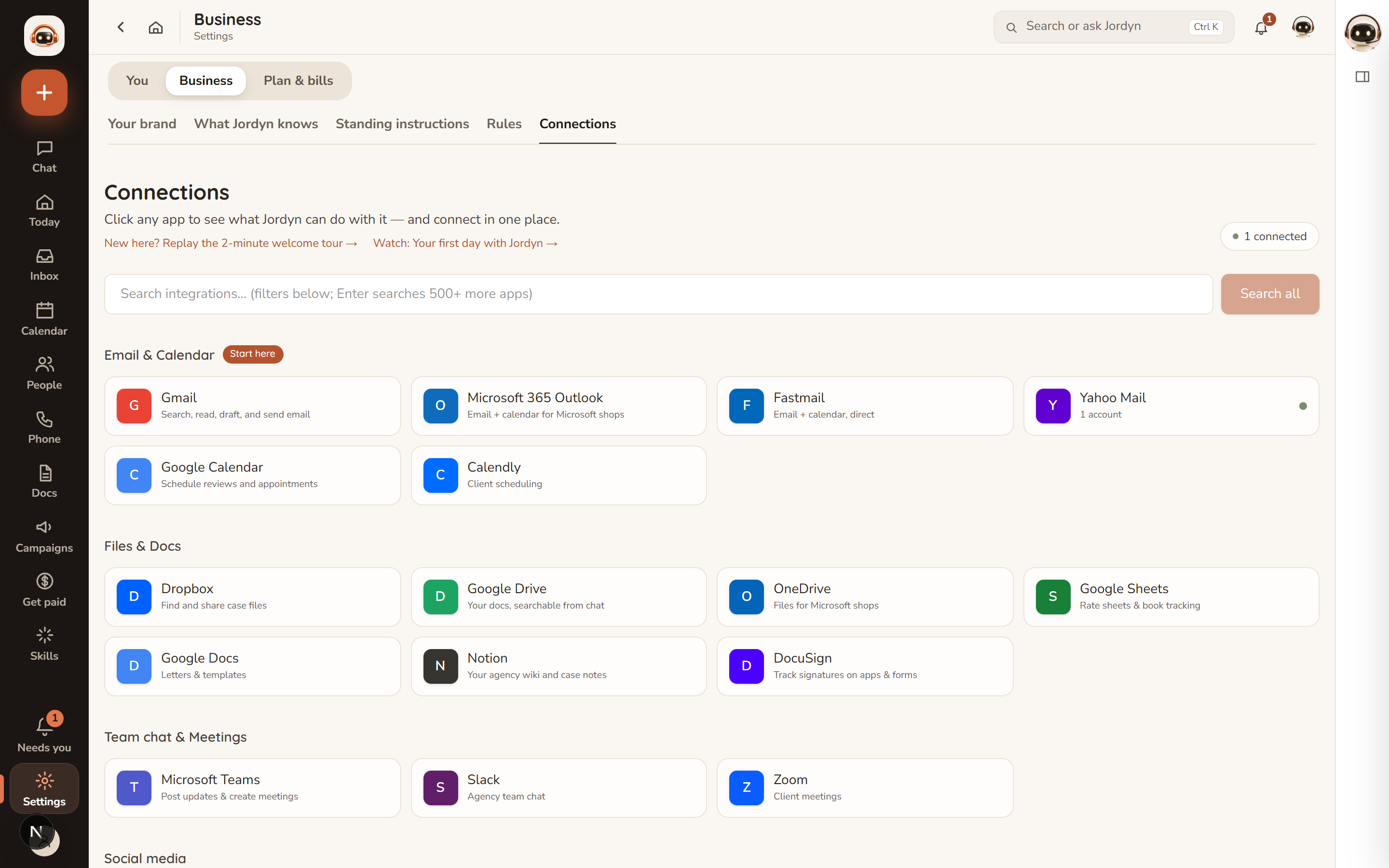
Jordyn works through your real inbox — it does not give you a new address. Connect one or more accounts under Settings → Business → Connections, in the "Email & Calendar" section marked Start here. You can connect several accounts, of any mix, and Jordyn treats them as one inbox with a filter.
Which providers work
Every common mailbox is supported. The connection method differs, which is the only thing worth knowing up front.
| Provider | How it connects | What you need |
|---|---|---|
| Gmail / Google Workspace | Sign in with Google | Your Google password |
| Microsoft 365 / Outlook / Hotmail | Sign in with Microsoft | Your Microsoft password |
| Yahoo Mail | App password | An app password from Yahoo |
| AOL Mail | App password (the Yahoo tile) | An app password from AOL |
| Fastmail | API token | A token with Mail and Calendars |
| Any other IMAP mailbox | Custom host (the Yahoo tile) | IMAP/SMTP servers and an app password |
If your mailbox is not named here, it almost certainly still works — see "Any other mailbox" below.
Gmail and Outlook
- Open Connections and click the Gmail or Microsoft 365 Outlook tile.
- Click Connect in the panel that opens.
- You land on Google's or Microsoft's own sign-in screen. Sign in and approve the permissions.
- You come back to Connections with the account showing a green dot and Connected.
Leave every permission box ticked. Unticking one does not make Jordyn safer — it makes a feature quietly fail later, usually calendar or send, and the error at that point will not mention the checkbox you unticked weeks earlier.
To add a second account of the same provider, open the tile again and click + Add another account.
Yahoo and AOL
Yahoo and AOL do not offer a sign-in screen to apps, so they use an app password: a password you generate that works for one app only and can be revoked without changing your real password.
- Yahoo: account.yahoo.com → Account Security → Generate app password → choose Mail. AOL: AOL Account Security → Generate app password → Mail.
- Copy the password it shows you — it is only shown once.
- On Connections, click the Yahoo Mail tile and paste it into the secure form.
In chat you can just say "connect my Yahoo" and Jordyn brings up the same form.
Fastmail
Fastmail uses an API token:
- In Fastmail: Settings → Privacy & Security → API tokens, and create a token with Mail and Calendars both ticked.
- On Connections, click the Fastmail tile.
- Paste the token into the field labelled "Paste your Fastmail key (starts with fmu1-)" and click Connect.
The token is verified, then stored encrypted and never shown again. If Jordyn later reports the token lacks Mail or Calendar access, you ticked only one box — recreate the token with both and reconnect.
Any other mailbox
The Yahoo Mail tile has a custom host option that takes IMAP and SMTP server names directly, so a work mailbox, a university account or a self-hosted server all connect the same way. You need the IMAP server, the SMTP server, and an app password (or your mailbox password, where the host still allows it). Your IT department or host's help pages will have the server names.
Connecting from chat
Say "connect my Gmail" and Jordyn presents the connect link right in the conversation.
Never paste a password or token into chat. Jordyn will always hand you a secure form instead — if something asks you to type a credential into the chat box, that is not how this works.
Reading the tiles
| Indicator | Meaning |
|---|---|
| Green dot, Connected | Working |
| Yellow dot, needs attention | Expired, or a sign-in you started but did not finish |
| Grey, Not connected | Never connected |
| "1 account" under the name | How many mailboxes of that provider are attached |
Click any tile to see its accounts, what Jordyn can do with that app, and example phrasings.
Disconnecting: click the remove control next to the account, then confirm with the Disconnect button. Two clicks, no popup. Disconnecting removes Jordyn's access and nothing else — every message stays in your mailbox.
When a connection breaks
Providers sign apps out from time to time. A password change does it immediately; security reviews and token expiry do it eventually. This is normal and not a sign anything is wrong.
What you will see:
- The account shows Connection expired — reconnect on Connections.
- Jordyn emails you once per outage: "Action needed — your email connection to Jordyn stopped working," with a Reconnect now button. Once per outage, not once per day.
To fix it: open Connections, click the tile, click Connect, and sign in again with the same account. Settings and history are preserved. Signing in with a different address adds a second account rather than repairing the first.
If reconnecting does not clear the warning: refresh the page, then fully disconnect and connect fresh, approving every permission.
When something's wrong
I connected it but Jordyn says it can't see my mail. Give it a minute on a large mailbox — the first sync is the slow one. If it persists, check the tile is green rather than yellow; a part-finished sign-in looks connected at a glance.
It keeps asking me to reconnect. Usually a permission was unticked at sign-in, so the token is missing a scope and fails the moment that scope is used. Disconnect, connect again, and leave every box ticked.
I changed my email password. That ends the connection by design. Reconnect with the new password.
Calendar works but mail doesn't (or the reverse). A Fastmail token with only one box ticked, or a Google sign-in with a permission unticked. Recreate the token or reconnect with everything approved.
My mailbox isn't one of the named ones. Use the custom-host option on the Yahoo tile. Jordyn is not restricted to the big providers.
Or just ask
- "Connect my Gmail"
- "Which of my email accounts are connected?"
- "Why does it say my Outlook needs attention?"
- "Disconnect my old work email"