Setting up your booking page
A booking page is a public "pick a time with me" link at jordyn.app/book/your-name. Visitors see your real availability across every connected calendar, choose a slot, and it lands on your calendar with confirmations going both ways. They become a contact automatically.
It only ever offers times you are actually free. That is the whole point: no back-and-forth, and no double bookings.
Making one
Open Calendar → Booking links and pick a starting point.
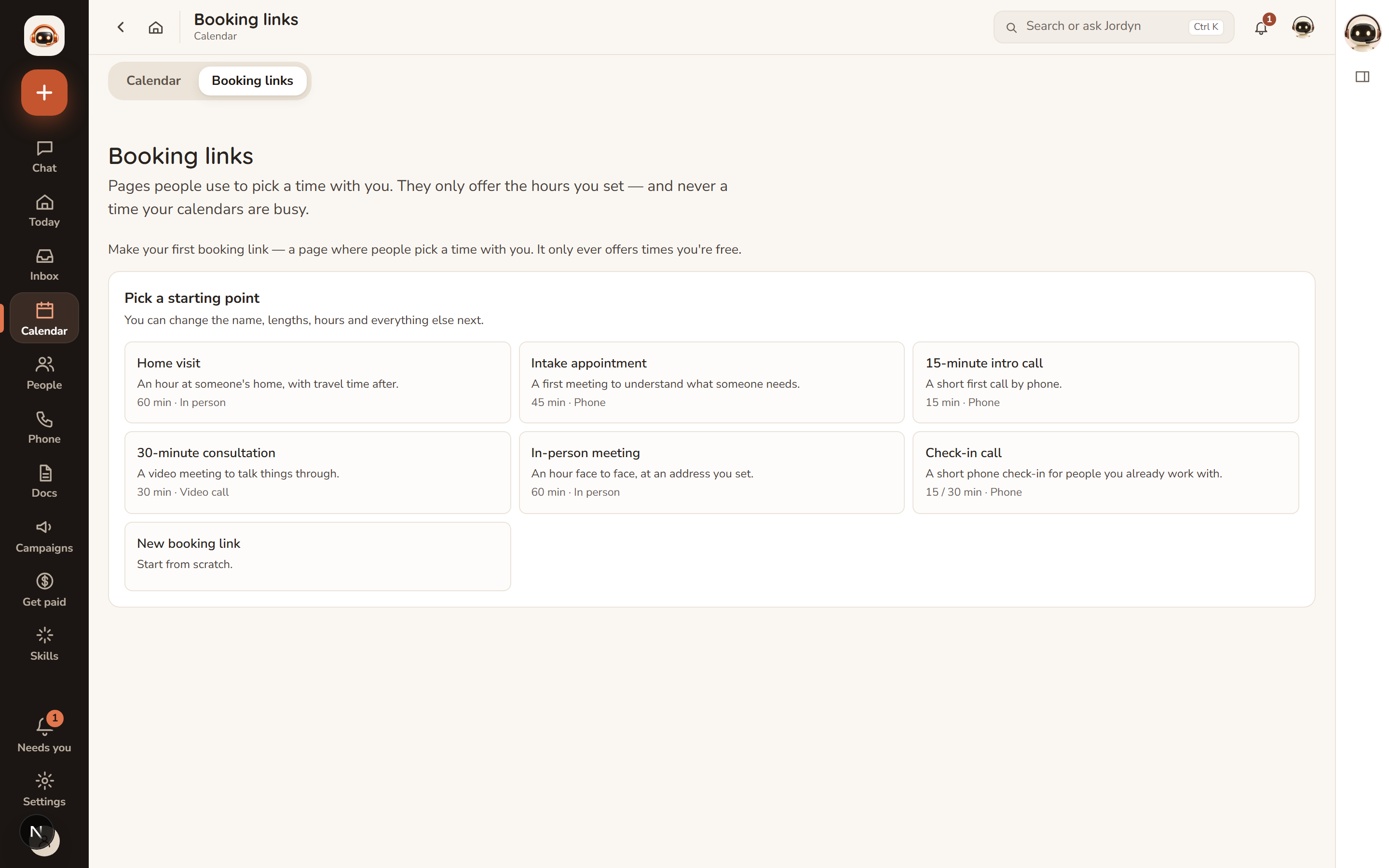
The starting points are pre-filled links for the meetings people actually book — a short intro call, a consultation, an in-person meeting, a check-in — plus one or two specific to your line of work. They set a sensible length, meeting type and set of questions; you change anything you like afterwards. New booking link starts from scratch.
Or do it in one sentence in chat:
"Make me a booking page for 30-minute calls, weekdays 9 to 4."
Jordyn sets it up and hands you the link.
Settings
Ask Jordyn to change any of these, or edit the link directly.
| Setting | Default | Options |
|---|---|---|
| Link name (after /book/) | — | letters, numbers, hyphens; up to 40 characters |
| Page title | "Book time with me" | any text |
| Intro text | "Pick a time that works — it lands straight on my calendar." | any text |
| Meeting lengths | 30 minutes | 15–240 minutes, up to 4 choices for the visitor |
| Hours | 9 AM – 5 PM | any window, weekdays only |
| How far ahead | 14 days | 1–60 days |
| Buffer around meetings | none | up to 120 minutes either side of every existing event |
| Time zone | US Central | any time zone |
| Meeting type | in person | in person, phone, Google Meet, Teams, Zoom |
| Location | — | address, room, or "I'll call you" — shown before they pick |
| Mirror to calendar | Jordyn only | any connected Google, Outlook or Fastmail calendar |
| On/off | on | off makes the page unavailable |
The two worth setting deliberately are the time zone (so visitors in another zone see the right times) and the buffer (so back-to-back bookings do not leave you with no gap).
Questions you ask
Each link has a short form the visitor fills in. The starting points come with sensible questions for that meeting — "What would you like to talk about?", "Which property would you like to see?" — and you can edit, add or remove them in the link's editor.
Keep it short. Every extra question is a reason to abandon the booking.
Video links
| Provider | How it works |
|---|---|
| Google Meet | Created automatically per booking, when mirroring to a connected Google calendar |
| Microsoft Teams | Created automatically per booking, when mirroring to a connected Outlook calendar |
| Zoom | Cannot be auto-created — paste your personal Zoom room link and it is used for every booking |
If a link could not be created for a booking, both you and the visitor are told plainly, and the visitor knows you will send one. Jordyn never promises a video link it could not make.
What happens on each booking
- The slot is claimed instantly — two visitors can never take the same one.
- The visitor gets a confirmation email with the details, a calendar attachment, and a private link to reschedule or cancel.
- You get an email: who booked, their contact details, any note they left, and whether it reached your mirrored calendar.
- They are added to your contacts.
- About an hour before, both of you get a reminder.
How availability is worked out
A slot is offered only if all of this is true:
- It is inside your set hours, on a weekday.
- It does not collide with an existing event on any connected calendar — plus your buffer on both sides.
- It is within your booking window (14 days by default).
All-day events do not block the day. Visitors see times in their own time zone, with yours noted when they differ.
When something's wrong
Nobody can book — it says no times available. Usually the window, the hours or the buffer. A large buffer plus a busy calendar can eliminate every slot. Widen the window or shrink the buffer and check the page yourself.
Times are offered when I'm busy. The calendar holding that event is probably disconnected — check Settings → Business → Connections for a yellow dot. Availability is only as good as the calendars Jordyn can see.
Bookings aren't on my Google/Outlook calendar. The link is mirroring to "Jordyn only". Change the mirror setting to the calendar you actually live in.
The visitor got no video link. Zoom is never auto-created — paste your room link. For Meet or Teams, the link must be mirroring to that provider's calendar with the right permissions.
Someone booked a time I wanted. Cancel from the event; the visitor gets a cancellation with your note, and their reschedule link still works.
The times look wrong to my visitors. Check the link's time zone. Visitors see their own zone, converted from yours — so a wrong setting here shifts everyone.
Or just ask
- "Make me a booking page for 30-minute calls"
- "Add a 15-minute option to my booking page"
- "Stop taking bookings after 3pm"
- "Who's booked with me this week?"
- "Turn my booking page off"
See What your visitors experience for the other side, including reschedule and cancel.