Using the Inbox
The Inbox page (/inbox) is one list for every email account you have connected. You read, reply and tidy here — and anything you ask Jordyn to write shows up here too, waiting for your approval before it sends.
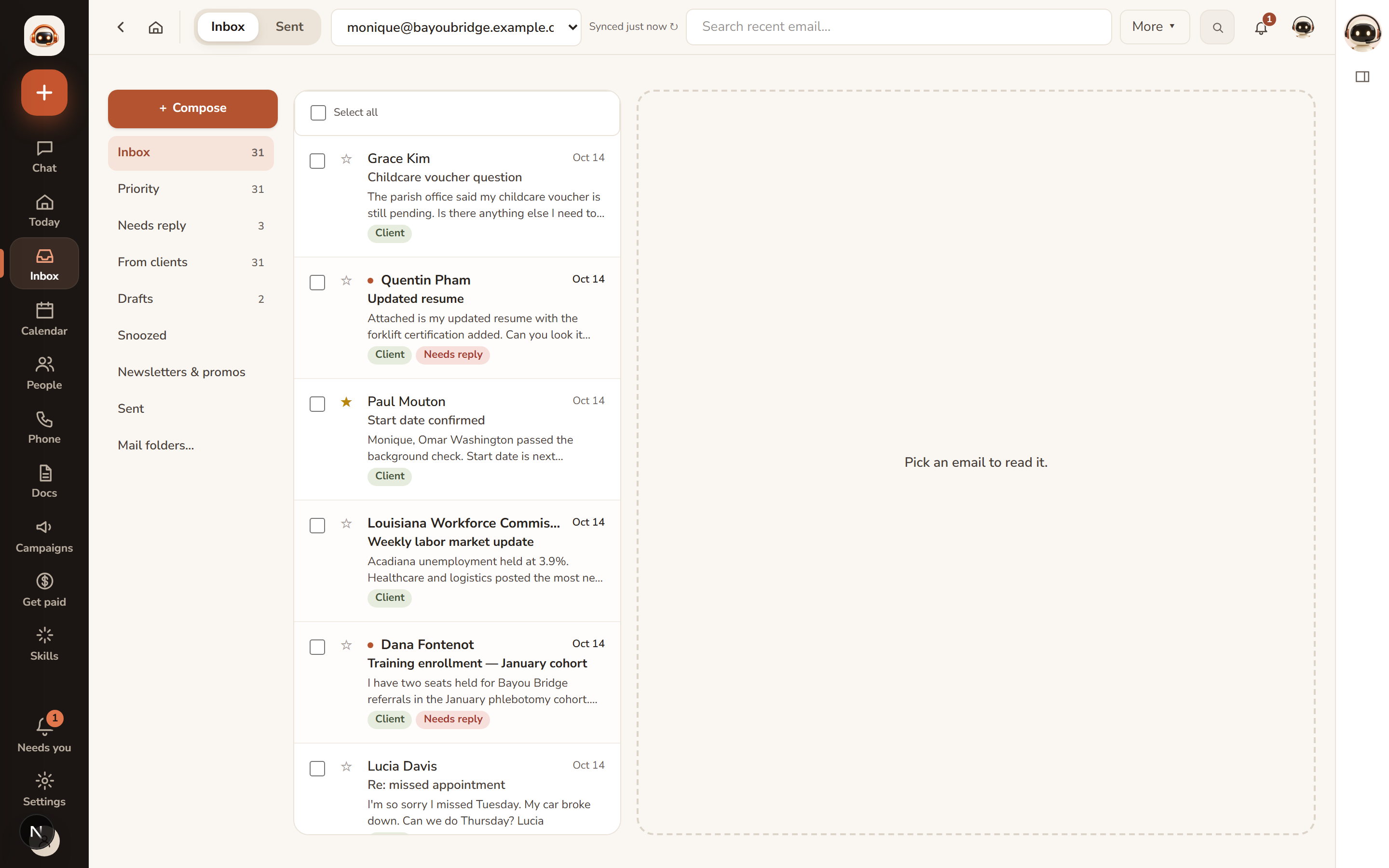
How the mail is sorted
Jordyn sorts arriving mail so the first thing you see is mail from actual people. Nothing is deleted or hidden — every view is one click away, down the left side of the list.
| View | What's in it |
|---|---|
| Inbox | Everything that arrived, newest first |
| Priority | What Jordyn judges worth your attention |
| Needs reply | Mail waiting on an answer from you |
| From clients | Mail from people in your book |
| Drafts | Started and unsent, across every account |
| Snoozed | Put off until a time you chose |
| Newsletters & promos | Marketing, newsletters, receipts and no-reply mail |
Needs reply is the one to work from on a busy morning; Newsletters & promos is where the noise goes so it is out of the way without being deleted.
Reading and acting on mail
- Click any email to read it — the full conversation thread loads alongside.
- Actions on each email: Archive, Delete, mark as Spam, mark Read/Unread, star, and move to a folder. Deleting asks you to confirm with a second click (no popups).
- Select multiple emails with the checkboxes for bulk actions.
- Pin an email to keep it at the top of the list.
- Attachments preview with one click and can be downloaded.
Archive or delete? Archive clears it from the list and keeps it findable by search — that is the right choice almost every time. Delete is for genuine rubbish.
Replying and composing
- Reply, Reply All, and Forward from the reading pane, with Cc/Bcc.
- Click New email to compose. Pick the sending account from the account picker; your signature is added automatically.
- Attach files from your computer or from your stored files (20 MB total limit).
- Paste images straight into the body.
- Record dictates your message by voice.
- Make it beautiful turns plain text into a branded designed email.
- Send now, save as draft (lands in your provider's Drafts folder), or schedule the send — from 1 minute to 90 days ahead.
- After sending you have a 10-second undo window.
- Remind me (next to Later): if nobody replies in 1 day to 2 weeks, it comes up under Needs you with a follow-up ready.
Send now, schedule, or draft?
| Choose | When you want | Where it waits |
|---|---|---|
| Send | It to go immediately | Nowhere — it's gone |
| Schedule | A specific time: first thing Monday, after a meeting | The Sent page, until it goes |
| Save as draft | To finish it later, maybe on your phone | Your mailbox's own Drafts folder |
Drafts
There are three different things called a draft, and they behave differently.
- You wrote it. Everything you type is saved to your mailbox's own Drafts folder a few seconds after you stop — new emails, replies and forwards — so it's there on your phone and in Gmail/Outlook too. The line under the composer says "Saving…" then "Saved to Drafts".
- Jordyn wrote it. Drafts from chat, a rule, or a daily follow-up are marked Jordyn wrote this and show under Needs you with Review & send. They do not send on their own.
- Someone must approve it. Ask for approval (in the composer, for people in an organization) sends the draft to your supervisor, who can Approve & send it from your mailbox or send it back with a note.
Drafts in the sidebar lists every account's drafts in one place: search, tick several to Send, Schedule or Delete at once. Supervisors see approval requests under Needs you and on /approvals, where they can also switch on "needs my OK before sending" for people they supervise.
If you see the same email twice
Ask Jordyn to reword something and you get a fresh card. Once you have sent one of them, the others for that same person and subject stop asking to be sent — they will not sit under Needs you inviting a second press. If you genuinely do want to send the same email again, press the button on the card you want; that always works.
Search
Type two or more characters in the search box to search the actual mailboxes — all connected accounts at once. If an account cannot be searched, the results say exactly which one, so you know coverage was incomplete rather than being shown a short list that quietly left an account out.
Switching accounts
The account filter at the top scopes the inbox to one account or shows all. The account picker also sets your default sending address; "Manage connections" at the bottom jumps to the Connections page.
Declutter
Click Declutter to open a panel of your noisiest senders, worst first, with a count of how much each has sent you:
- Clear the clutter archives all noise in one go, with a progress bar.
- Per sender: Unsubscribe (uses their own unsubscribe link and archives the backlog), Archive all (clears the backlog, keeps receiving), or Keep (leaves it alone and stops offering that sender again).
- Toggle Keep my inbox clean automatically to archive promotional mail on arrival — mail from real clients always stays.
Nothing Declutter touches is deleted. It is all still in your mailbox and still in search.
Staying current
The inbox refreshes itself every 45 seconds while the window is open, and instantly when new mail is detected. The refresh button forces a full sync anytime.
Or just ask
Anything on this page can be done by typing it in chat instead of clicking:
- "Archive everything from Indeed"
- "What came in from Margaret Powell this week?"
- "Show me anything I haven't replied to"
- "Reply and say I'll have it by Friday"
- "Did my email to Margaret actually send?"
When something's wrong
New mail isn't showing up. The list refreshes every 45 seconds on its own; press refresh to force a full sync. Check the account filter at the top — you may be looking at one account — then check Newsletters & promos, since a new sender sometimes lands there first.
An account says it needs reconnecting. Providers expire their permission every so often, and a password change ends it immediately. Go to Connections, find the account, and click Reconnect. Nothing is lost — your mail is in your mailbox, not here.
A send failed. You get the provider's own reason. The three common ones: the attachment pushed it over 20 MB, the address does not exist, or the account needs reconnecting. The email stays in your composer, so fix the cause and send again.
Something shows as unsent that you know you sent. The Sent page is the authority — if it is there with a timestamp, it went. Ask Jordyn "did my email to [name] actually send?" and it checks the mailbox itself rather than reading a list.
Declutter archived something you wanted. Nothing is deleted. Find it in search, move it back, and press Keep on that sender so it is left alone from now on.